EventR AI Inbox
Overview
The EventR platform features integration with AI technology, to make managing your events, costs, and itineraries easier and more hassle-free.On the EventR Team App expenses can be added by just taking a photo of the receipt and the Ai handles the rest.In the EventR Coordinator an itinerary can be populated by the forwarding the bookings.
EventR Coordinator Hub
In EventR Coordinator Hub, you have access to more powerful AI tools, as long as you are Standard plan or higher. You have access to the AI Inbox, which allows you to send emails containing itinerary-relevant documents to a provided eventr-bookings email , view AI-suggested itinerary items created based on those documents, and add them seamlessly to your itinerary.
To access eventR AI Inbox go to the coordinator left side and click on AI Inbox.This opens the Booking AI page seen below.
Forward Your Bookings
To get started, click the "Forward Your Bookings" button on the top right.

Ensure you have the correct itinerary selected. Copy the eventr-booking email address shown.Open your mail box and send or forward your bookings to the copies email address. Note that the supported file types in email attachments are:
- XLS/XLSX
- DOC/DOX
- PPTX/PPT
- CSV
- TXT
- HTML
- XML
- EML
- JPG
- PNG
- BMP

Head back to the coordinator. A red dot on the Inbox AI icon on the sidebar indicated there is an unread email on the Booking AI page.
Go to Booking AI page.The Inbox tab displays all emails sent or forwarded to be reviewed for your itinerary.Inbox emails have status indicated by dots:
- 🟡 Pending
- 🟢 Successfully Completed
- 🔴 Has filed or 30 min time out.
Archive tab displayed archived emails.
Add booking to the itinerary
Each email has a summary displayed on hoovering on the email subject for successfully completed emails.Clicking on the subject also opens a summary overlay.In addition a successfully completed email will have number of booking counter and a downward chevron that displays a list of found bookings.


Click the "+" icon or the Create button on any suggested itinerary booking to add it to your itinerary.This should open the relevant section form. Make sure to double-check all the form information is correct, and make any edits needed. Then, click "Save".The booking is now successfully added to the itinerary.

To delete or archive multiple emails use the Select All checkbox.Each email has the same operation on the right most of the email.A booking in an email has a delete or create options.

Forwarded Bookings Format CheatSheet
EventR AI supports abroad list of file formats but for a an email to be processed successfully there are key booking information required for each of the itinerary sections
General Rule
Members or users added to the booking should have first and last.
A booking Must have Dates and Time to be completed successfully.
Any notes are added as booking additional information which are only visible to the members in that specific booking.
Flights
- Flight Number and Flight Date
- Departure and Arrival date and time,
- Departure and Arrival Airport codes
- Reference Number or seat number if provided
- Passenger specific information can be added as additional information
Accommodation
- Hotel name
- Guest names should ideally be in the same column.
- Hotel Default Check-in and Check-out date and times if all guests have the same check-in and out date and time
- Guest Check-in and Check-out date and times if there is a variation of the check-in and check-out date and time
- Booking reference ,room type or additional information if provided[Optional]
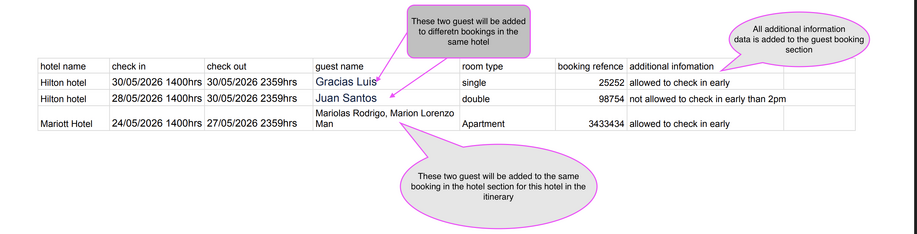
Sample image showing hotel key information for successful AI processing

Transport

Hire/Rental Cars